demo app - developing with ansible
To start VMs
Step 1: Create hosts server
vagrant up
Step 2: Checking connection
sshpass -p vagrant ssh vagrant@192.168.56.10
sshpass -p vagrant ssh vagrant@192.168.56.11
With ansible-playbook
Creating file inventory
[all]
192.168.56.10 ansible_user=vagrant ansible_ssh_pass=vagrant
192.168.56.11 ansible_user=vagrant ansible_ssh_pass=vagrant
Use tasks to play in
playbook-01.yml.
---
- hosts: all
  tasks:
    - name: Print message
      debug:
        msg: Hello Ansible
ansible-playbook -i inventory playbook-01.yml
PLAY [all] *********************************************************************

TASK [Gathering Facts] *********************************************************
ok: [192.168.56.11]
ok: [192.168.56.10]

TASK [Print message] ***********************************************************
ok: [192.168.56.10] => {
    "msg": "Hello Ansible"
}
ok: [192.168.56.11] => {
    "msg": "Hello Ansible"
}

PLAY RECAP *********************************************************************
192.168.56.10              : ok=2    changed=0    unreachable=0    failed=0    skipped=0    rescued=0    ignored=0
192.168.56.11              : ok=2    changed=0    unreachable=0    failed=0    skipped=0    rescued=0    ignored=0
Use vars to defines a list of variables in
playbook-02.yml.
---
- hosts: all
  vars:
    - username: hoang
    - dir: /home/hoang
  tasks:
    - name: Print variables
      debug:
        msg: " Username: {{ username }},
               Home dir: {{ dir }} "
ansible-playbook -i inventory playbook-02.yml
PLAY [all] *********************************************************************

TASK [Gathering Facts] *********************************************************
ok: [192.168.56.11]
ok: [192.168.56.10]

TASK [Print variables] *********************************************************
ok: [192.168.56.10] => {
    "msg": "Username: hoang, Home dir: /home/hoang "
}
ok: [192.168.56.11] => {
    "msg": "Username: hoang, Home dir: /home/hoang "
}

PLAY RECAP *********************************************************************
192.168.56.10              : ok=2    changed=0    unreachable=0    failed=0    skipped=0    rescued=0    ignored=0
192.168.56.11              : ok=2    changed=0    unreachable=0    failed=0    skipped=0    rescued=0    ignored=0
To access system information, use filter parameter to provide a pattern,
you can get any variable in JSON output and show off on msg of debug in
playbook-03.yml.
---
- hosts: all
  tasks:
    - name: print facts
      debug:
        msg: "IPv4 address: {{ ansible_default_ipv4.address }}"
ansible all -i inventory -m setup
ansible all -i inventory -m setup -a "filter=*ipv4*"
ansible-playbook -i inventory playbook-03.yml
PLAY [all] *********************************************************************

TASK [Gathering Facts] *********************************************************
ok: [192.168.56.11]
ok: [192.168.56.10]

TASK [print facts] *************************************************************
ok: [192.168.56.10] => {
    "msg": "IPv4 address: 10.0.2.15"
}
ok: [192.168.56.11] => {
    "msg": "IPv4 address: 10.0.2.15"
}

PLAY RECAP *********************************************************************
192.168.56.10              : ok=2    changed=0    unreachable=0    failed=0    skipped=0    rescued=0    ignored=0
192.168.56.11              : ok=2    changed=0    unreachable=0    failed=0    skipped=0    rescued=0    ignored=0
Use when in playbook to run tasks with condition, the variable in the condition was predefined in vars in
playbook-04.yml.
---
- hosts: all
  vars:
    - create_user_file: yes
    - user: vagrant
  tasks:
    - name: create file for user
      file:
        path: /home/{{ user }}/tmp.txt
        state: touch
      when: create_user_file
ansible-playbook -i inventory playbook-04.yml
PLAY [all] *********************************************************************

TASK [Gathering Facts] *********************************************************
ok: [192.168.56.11]
ok: [192.168.56.10]

TASK [create file for user] ****************************************************
changed: [192.168.56.11]
changed: [192.168.56.10]

PLAY RECAP *********************************************************************
192.168.56.10              : ok=2    changed=1    unreachable=0    failed=0    skipped=0    rescued=0    ignored=0
192.168.56.11              : ok=2    changed=1    unreachable=0    failed=0    skipped=0    rescued=0    ignored=0
Now we can verify the file was created.
sshpass -p vagrant ssh vagrant@192.168.56.10
cd /home/vagrant/
ls -l
total 0
-rw-rw-r-- 1 vagrant vagrant 0 Mar  3 16:26 tmp.txt
Use register in playbook to create a new variable and assigns it with the output obtained from a command.
Because Ansible will interrupt a play if the command you’re using to evaluate a condition fails.
For that reason, you’ll need to include an ignore_errors directive set to yes in said task, and this will make Ansible move on to the next task and continue the play.
We can see clearly with playbook-05.yml.
---
- hosts: all
  vars:
    - user: vagrant
    - filename: tmp
  tasks:
    - name: Check if file already exists
      command: ls /home/{{ user }}/{{ filename }}
      register: file_exists
      ignore_errors: yes

    - name: create file for user
      file:
        path: /home/{{ user }}/{{ filename }}
        state: touch
      when: file_exists is failed

    - name: show message if file exists
      debug:
        msg: The user file already exists.
      when: file_exists is succeeded
ansible-playbook -i inventory playbook-05.yml
PLAY [all] *********************************************************************

TASK [Gathering Facts] *********************************************************
ok: [192.168.56.11]
ok: [192.168.56.10]

TASK [Check if file already exists] ********************************************
fatal: [192.168.56.11]: FAILED! => {"changed": true, "cmd": ["ls", "/home/vagrant/tmp"], "delta": "0:00:00.004377", "end": "2022-03-03 15:42:05.367117", "msg": "non-zero return code", "rc": 2, "start": "2022-03-03 15:42:05.362740", "stderr": "ls: cannot access '/home/vagrant/tmp': No such file or directory", "stderr_lines": ["ls: cannot access '/home/vagrant/tmp': No such file or directory"], "stdout": "", "stdout_lines": []}
...ignoring
fatal: [192.168.56.10]: FAILED! => {"changed": true, "cmd": ["ls", "/home/vagrant/tmp"], "delta": "0:00:00.005670", "end": "2022-03-03 15:42:05.495959", "msg": "non-zero return code", "rc": 2, "start": "2022-03-03 15:42:05.490289", "stderr": "ls: cannot access '/home/vagrant/tmp': No such file or directory", "stderr_lines": ["ls: cannot access '/home/vagrant/tmp': No such file or directory"], "stdout": "", "stdout_lines": []}
...ignoring

TASK [create file for user] ****************************************************
changed: [192.168.56.10]
changed: [192.168.56.11]

TASK [show message if file exists] *********************************************
skipping: [192.168.56.11]
skipping: [192.168.56.10]

PLAY RECAP *********************************************************************
192.168.56.10              : ok=3    changed=2    unreachable=0    failed=0    skipped=1    rescued=0    ignored=1
192.168.56.11              : ok=3    changed=2    unreachable=0    failed=0    skipped=1    rescued=0    ignored=1
Then, re-run playbook, you’ll get a different result because the file is already exists.
ansible-playbook -i inventory playbook-05.yml
PLAY [all] *********************************************************************

TASK [Gathering Facts] *********************************************************
ok: [192.168.56.11]
ok: [192.168.56.10]

TASK [Check if file already exists] ********************************************
changed: [192.168.56.11]
changed: [192.168.56.10]

TASK [create file for user] ****************************************************
skipping: [192.168.56.10]
skipping: [192.168.56.11]

TASK [show message if file exists] *********************************************
ok: [192.168.56.10] => {
    "msg": "The user file already exists."
}
ok: [192.168.56.11] => {
    "msg": "The user file already exists."
}

PLAY RECAP *********************************************************************
192.168.56.10              : ok=3    changed=1    unreachable=0    failed=0    skipped=1    rescued=0    ignored=0
192.168.56.11              : ok=3    changed=1    unreachable=0    failed=0    skipped=1    rescued=0    ignored=0
Use loop in playbook to avoid repeating the task several times. By default Ansible sets the loop variable item for each loop.
Let see in playbook-06.yml.
---
- hosts: all
  tasks:
    - name: creates users files
      file:
        path: /tmp/ansible-{{ item }}
        state: touch
      loop:
        - root
        - hoang
        - hanh
ansible-playbook -i inventory playbook-06.yml
PLAY [all] *********************************************************************

TASK [Gathering Facts] *********************************************************
ok: [192.168.56.11]
ok: [192.168.56.10]

TASK [creates users files] *****************************************************
changed: [192.168.56.11] => (item=root)
changed: [192.168.56.10] => (item=root)
changed: [192.168.56.10] => (item=hoang)
changed: [192.168.56.11] => (item=hoang)
changed: [192.168.56.10] => (item=hanh)
changed: [192.168.56.11] => (item=hanh)

PLAY RECAP *********************************************************************
192.168.56.10              : ok=2    changed=1    unreachable=0    failed=0    skipped=0    rescued=0    ignored=0
192.168.56.11              : ok=2    changed=1    unreachable=0    failed=0    skipped=0    rescued=0    ignored=0
With privilege escalation, such as to run a command with extended permissions (ex: sudo), you’ll need to include a become directive set to yes in
playbook-07.yml.
---
- hosts: all
  become: yes
  tasks:
    - name: Update apt cache
      apt:
        update_cache: yes
ansible-playbook -i inventory playbook-07.yml
PLAY [all] *********************************************************************

TASK [Gathering Facts] *********************************************************
ok: [192.168.56.11]
ok: [192.168.56.10]

TASK [Update apt cache] ********************************************************
changed: [192.168.56.10]
changed: [192.168.56.11]

PLAY RECAP *********************************************************************
192.168.56.10              : ok=2    changed=1    unreachable=0    failed=0    skipped=0    rescued=0    ignored=0
192.168.56.11              : ok=2    changed=1    unreachable=0    failed=0    skipped=0    rescued=0    ignored=0
To provide privilege escalation password, you can use the following command with flag -K (–ask-become-pass).
ansible-playbook -i inventory playbook-07.yml -K
BECOME password:

PLAY [all] *********************************************************************

TASK [Gathering Facts] *********************************************************
ok: [192.168.56.11]
ok: [192.168.56.10]

TASK [Update apt cache] ********************************************************
ok: [192.168.56.11]
ok: [192.168.56.10]

PLAY RECAP *********************************************************************
192.168.56.10              : ok=2    changed=0    unreachable=0    failed=0    skipped=0    rescued=0    ignored=0
192.168.56.11              : ok=2    changed=0    unreachable=0    failed=0    skipped=0    rescued=0    ignored=0
You can also change which user you want to switch to while executing a task or play. To do that, set the become_user directive to the name of the remote user you want to switch to in
playbook-08.yml.
---
- hosts: all
  become: yes
  vars:
    user: "{{ ansible_env.SUDO_USER }}"
  tasks:
    - name: Create root file
      file:
        path: /tmp/file_of_root
        state: touch

    - name: Create {{ user }} file
      become_user: "{{ user }}"
      file:
        path: /tmp/file_of_{{ user }}
        state: touch
ansible-playbook -i inventory playbook-08.yml
PLAY [all] *********************************************************************

TASK [Gathering Facts] *********************************************************
ok: [192.168.56.11]
ok: [192.168.56.10]

TASK [Create root file] ********************************************************
changed: [192.168.56.11]
changed: [192.168.56.10]

TASK [Create vagrant file] *****************************************************
changed: [192.168.56.10]
changed: [192.168.56.11]

PLAY RECAP *********************************************************************
192.168.56.10              : ok=3    changed=2    unreachable=0    failed=0    skipped=0    rescued=0    ignored=0
192.168.56.11              : ok=3    changed=2    unreachable=0    failed=0    skipped=0    rescued=0    ignored=0
Now we can verify file ownership information.
sshpass -p vagrant ssh vagrant@192.168.56.10
ls -la /tmp/file_of_*
-rw-r--r-- 1 root    root    0 Mar  3 16:03 /tmp/file_of_root
-rw-rw-r-- 1 vagrant vagrant 0 Mar  3 16:03 /tmp/file_of_vagrant
Use apt in playbook to install and manage system packages. To install a package, you can set package state to present or latest (default is present).
Let see in playbook-09.yml.
---
- hosts: all
  become: yes
  tasks:
    - name: Update apt cache and make sure Vim is installed
      apt:
        name: vim
        state: latest
        update_cache: yes
ansible-playbook -i inventory playbook-09.yml
PLAY [all] *********************************************************************

TASK [Gathering Facts] *********************************************************
ok: [192.168.56.11]
ok: [192.168.56.10]

TASK [Update apt cache and make sure Vim is installed] *************************
ok: [192.168.56.11]
ok: [192.168.56.10]

PLAY RECAP *********************************************************************
192.168.56.10              : ok=2    changed=0    unreachable=0    failed=0    skipped=0    rescued=0    ignored=0
192.168.56.11              : ok=2    changed=0    unreachable=0    failed=0    skipped=0    rescued=0    ignored=0
Now we can verify Vim package have installed.
sshpass -p vagrant ssh vagrant@192.168.56.11
vim --version | head -n1
VIM - Vi IMproved 8.0 (2016 Sep 12, compiled Jan 20 2022 02:47:53)
When you want to remove a package, you must set the package state to absent.
---
- hosts: all
  become: yes
  tasks:
    - name: Removing Vim package
      apt:
        name: vim
        state: absent
Now we can verify Vim package have removed.
sshpass -p vagrant ssh vagrant@192.168.56.11
vim --version
-bash: vim: command not found
When installing multiple packages, you can use a loop and provide an array containing the names of the packages you want to install in
playbook-10.yml.
---
- hosts: all
  become: yes
  tasks:
    - name: Update apt cache and make sure Vim, Curl and Unzip are installed
      apt:
        name: "{{ item }}"
        update_cache: yes
      loop:
        - vim
        - curl
        - unzip
ansible-playbook -i inventory playbook-10.yml
PLAY [all] *********************************************************************

TASK [Gathering Facts] *********************************************************
ok: [192.168.56.11]
ok: [192.168.56.10]

TASK [Update apt cache and make sure Vim, Curl and Unzip are installed] ********
changed: [192.168.56.10] => (item=vim)
ok: [192.168.56.10] => (item=curl)
ok: [192.168.56.10] => (item=unzip)
changed: [192.168.56.11] => (item=vim)
ok: [192.168.56.11] => (item=curl)
ok: [192.168.56.11] => (item=unzip)

PLAY RECAP *********************************************************************
192.168.56.10              : ok=2    changed=1    unreachable=0    failed=0    skipped=0    rescued=0    ignored=0
192.168.56.11              : ok=2    changed=1    unreachable=0    failed=0    skipped=0    rescued=0    ignored=0
Templates allow you to create new files on the nodes using predefined models based on the Jinja2 templating system. Ansible templates are typically saved as .tpl files and support the use of variables, loops, and conditional expressions.
Now we will create new template file called landing-page.html.j2
<!doctype html>
<html lang="en">
<head>
  <meta charset="utf-8">
  <title> {{ page_title }} </title>
  <meta name="description" content="Created with Ansible">
</head>
<body>
    <h1> {{ page_title }} </h1>
    <p> {{ page_description }} </p>
</body>
</html>
This template uses two variables that must be provided whenever the template is applied in a playbook: page_title and page_description. We can see in playbook-11.yml
---
- hosts: all
  become: yes
  vars:
    page_title: Meme Wibu
    page_description: Wibu is the best.
  tasks:
    - name: Install Nginx
      apt:
        name: nginx
        state: latest

    - name: Apply Page Template
      template:
        src: files/landing-page.html.j2
        dest: /var/www/html/index.nginx-debian.html

    - name: Allow all access to tcp port 80
      ufw:
        rule: allow
        port: '80'
        proto: tcp
ansible-playbook -i inventory playbook-11.yml
On localhost, you can access landing page with server public ip (192.168.56.10 or 192.168.56.11)
curl 192.168.56.11
<!doctype html>
<html lang="en">
<head>
  <meta charset="utf-8">
  <title>Meme Wibu</title>
  <meta name="description" content="Created with Ansible">
</head>
<body>
    <h1>Meme Wibu</h1>
    <p>Wibu is the best.</p>
</body>
</html>
In Ansible, handlers are special tasks that only get executed when triggered via the notify directive. Handlers are executed at the end of the play, once all tasks are finished. So, handlers are typically used to start, reload, restart, and stop services. If your playbook involves changing configuration files, there is a high chance that you’ll need to restart a service so that the changes take effect.
The following playbook-12.yml replaces the default document root in Nginx’s configuration file using the built-in Ansible module replace. This module looks for patterns in a file based on a regular expression defined by regexp, and then replaces any matches found with the content defined by replace. The task then sends a notification to the Restart Nginx handler for a restart as soon as possible.
---
- hosts: all
  become: yes
  vars:
    page_title: Master Wibu
    page_description: No wibu No fun.
    doc_root: /var/www/wibu

  tasks:
    - name: Install Nginx
      apt:
        name: nginx
        state: latest

    - name: Make sure new doc root exists
      file:
        path: "{{ doc_root }}"
        state: directory
        mode: '0755'

    - name: Apply Page Template
      template:
        src: files/landing-page.html.j2
        dest: "{{ doc_root }}/index.html"

    - name: Replace document root on default Nginx configuration
      replace:
        path: /etc/nginx/sites-available/default
        regexp: '(\s+)root /var/www/html;(\s+.*)?$'
        replace: \g<1>root {{ doc_root }};\g<2>
      notify: Restart Nginx

    - name: Allow all access to tcp port 80
      ufw:
        rule: allow
        port: '80'
        proto: tcp

  handlers:
    - name: Restart Nginx
      service:
        name: nginx
        state: restarted
ansible-playbook -i inventory playbook-12.yml
PLAY [all] *********************************************************************

TASK [Gathering Facts] *********************************************************
ok: [192.168.56.10]
ok: [192.168.56.11]

TASK [Install Nginx] ***********************************************************
ok: [192.168.56.10]
ok: [192.168.56.11]

TASK [Make sure new doc root exists] *******************************************
changed: [192.168.56.10]
changed: [192.168.56.11]

TASK [Apply Page Template] *****************************************************
changed: [192.168.56.11]
changed: [192.168.56.10]

TASK [Replace document root on default Nginx configuration] ********************
changed: [192.168.56.11]
changed: [192.168.56.10]

TASK [Allow all access to tcp port 80] *****************************************
ok: [192.168.56.10]
ok: [192.168.56.11]

RUNNING HANDLER [Restart Nginx] ************************************************
changed: [192.168.56.11]
changed: [192.168.56.10]

PLAY RECAP *********************************************************************
192.168.56.10              : ok=7    changed=4    unreachable=0    failed=0    skipped=0    rescued=0    ignored=0
192.168.56.11              : ok=7    changed=4    unreachable=0    failed=0    skipped=0    rescued=0    ignored=0
On a fresh installation of Nginx, the document root is located at /var/www/html, but we move the location to /var/www/wibu by using replace if matched pattern in regexp. This causes a change in Nginx configuration, so you’ll see the Restart Nginx handler being executed just before the end of the play.
Now if you re-run playbook, you’ll get a different result because the document root was moved to /var/www/wibu, not matched pattern in regexp. So the Restart Nginx not being executed.
PLAY [all] *********************************************************************

TASK [Gathering Facts] *********************************************************
ok: [192.168.56.11]
ok: [192.168.56.10]

TASK [Install Nginx] ***********************************************************
ok: [192.168.56.10]
ok: [192.168.56.11]

TASK [Make sure new doc root exists] *******************************************
ok: [192.168.56.10]
ok: [192.168.56.11]

TASK [Apply Page Template] *****************************************************
ok: [192.168.56.10]
ok: [192.168.56.11]

TASK [Replace document root on default Nginx configuration] ********************
ok: [192.168.56.10]
ok: [192.168.56.11]

TASK [Allow all access to tcp port 80] *****************************************
ok: [192.168.56.11]
ok: [192.168.56.10]

PLAY RECAP *********************************************************************
192.168.56.10              : ok=6    changed=0    unreachable=0    failed=0    skipped=0    rescued=0    ignored=0
192.168.56.11              : ok=6    changed=0    unreachable=0    failed=0    skipped=0    rescued=0    ignored=0
If you go to your browser and access the server’s IP address now, you’ll see the following page:
curl 192.168.56.11
<!doctype html>
<html lang="en">
<head>
  <meta charset="utf-8">
  <title>Master Wibu</title>
  <meta name="description" content="Created with Ansible">
</head>
<body>
    <h1>Master Wibu</h1>
    <p>No wibu No fun.</p>
</body>
</html>
After all, now we’ll use what we have seen so far to create a playbook that automates setting up a remote Nginx server to host a static HTML website on Ubuntu 20.04.
First of all, we create a demo website in nginx_demo/resources.
total 20
drwxr-xr-x 3 ph3 ph3 4096 Mar  3 13:42 .
drwxr-xr-x 4 ph3 ph3 4096 Mar  3 13:31 ..
-rw-r--r-- 1 ph3 ph3 1441 Jul 29  2021 about.html
drwxr-xr-x 2 ph3 ph3 4096 Jul 29  2021 images
-rw-r--r-- 1 ph3 ph3 3165 Jul 29  2021 index.html
You’ll now set up the Nginx template that is necessary to configure the remote web server in files/nginx.conf.j2.
server {
  listen 80;

  root {{ document_root }}/{{ app_root }};
  index index.html index.htm;

  server_name {{ server_name }};

  location / {
   default_type "text/html";
   try_files $uri.html $uri $uri/ =404;
  }
}
This template file contains an Nginx server block configuration for a static HTML website. It uses three variables: document_root, app_root, and server_name. Now we’ll define these variables in playbook-nginx.yml.
---
- hosts: all
  become: yes
  vars:
    server_name: "{{ ansible_default_ipv4.address }}"
    document_root: /var/www
    app_root: resources
  tasks:
    - name: Update apt cache and install Nginx
      apt:
        name: nginx
        state: latest
        update_cache: yes

    - name: Copy website files to the server's document root
      copy:
        src: "{{ app_root }}"
        dest: "{{ document_root }}"
        mode: preserve

    - name: Apply Nginx template
      template:
        src: files/nginx.conf.j2
        dest: /etc/nginx/sites-available/default
      notify: Restart Nginx

    - name: Enable new site
      file:
        src: /etc/nginx/sites-available/default
        dest: /etc/nginx/sites-enabled/default
        state: link
      notify: Restart Nginx

    - name: Allow all access to tcp port 80
      ufw:
        rule: allow
        port: '80'
        proto: tcp

  handlers:
    - name: Restart Nginx
      service:
        name: nginx
        state: restarted
ansible-playbook -i inventory nginx_demo/playbook-nginx.yml
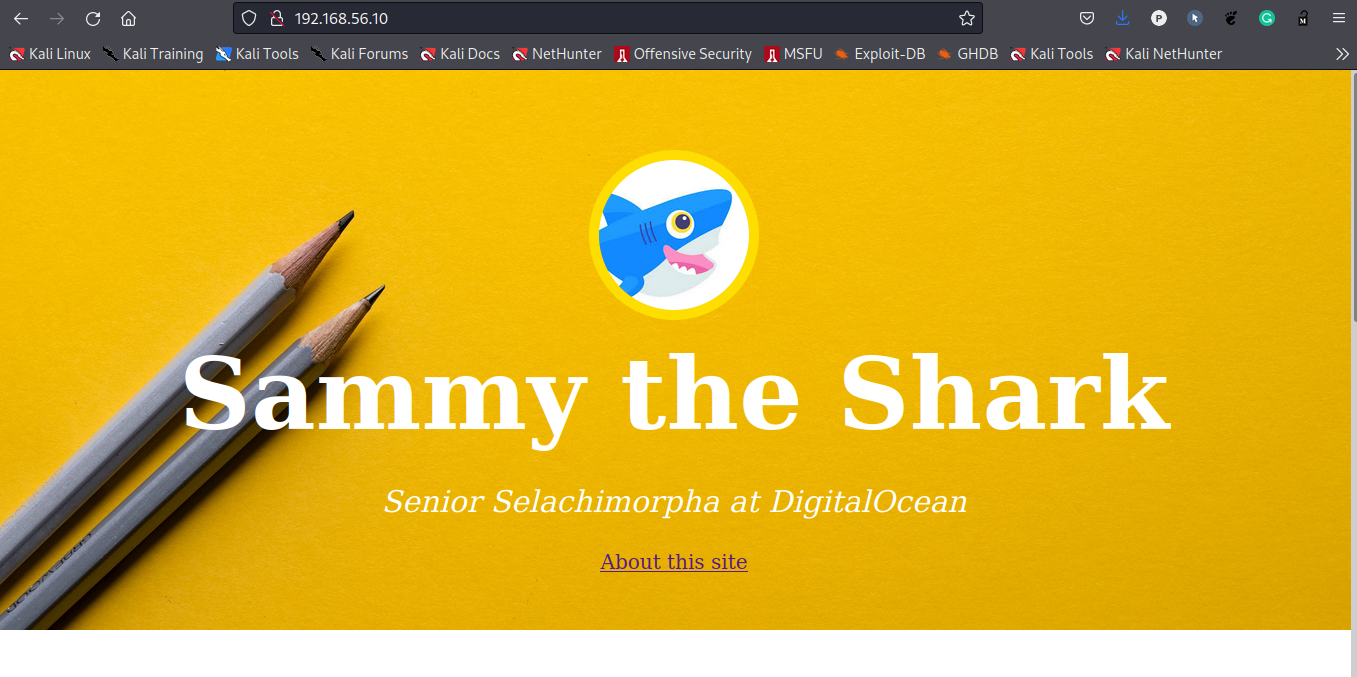
If you go to your browser and access your server’s hostname or IP address you should now see the following page:
Thanks and Best Regards !!!
You can get full source code here!